Sign in for the first time
This page shows how to open BizzWeave ERP and sign in. It takes about two minutes.
Before you start
You need:
- the e-mail address your administrator invited, or the one you registered with;
- your password;
- on the live system, your mobile phone with an authenticator app (for example Google Authenticator or Microsoft Authenticator). It gives you a 6-digit code at each sign-in.
Steps
-
Open the website. Type the address of your BizzWeave ERP into the browser's address bar and press Enter. The welcome page opens.
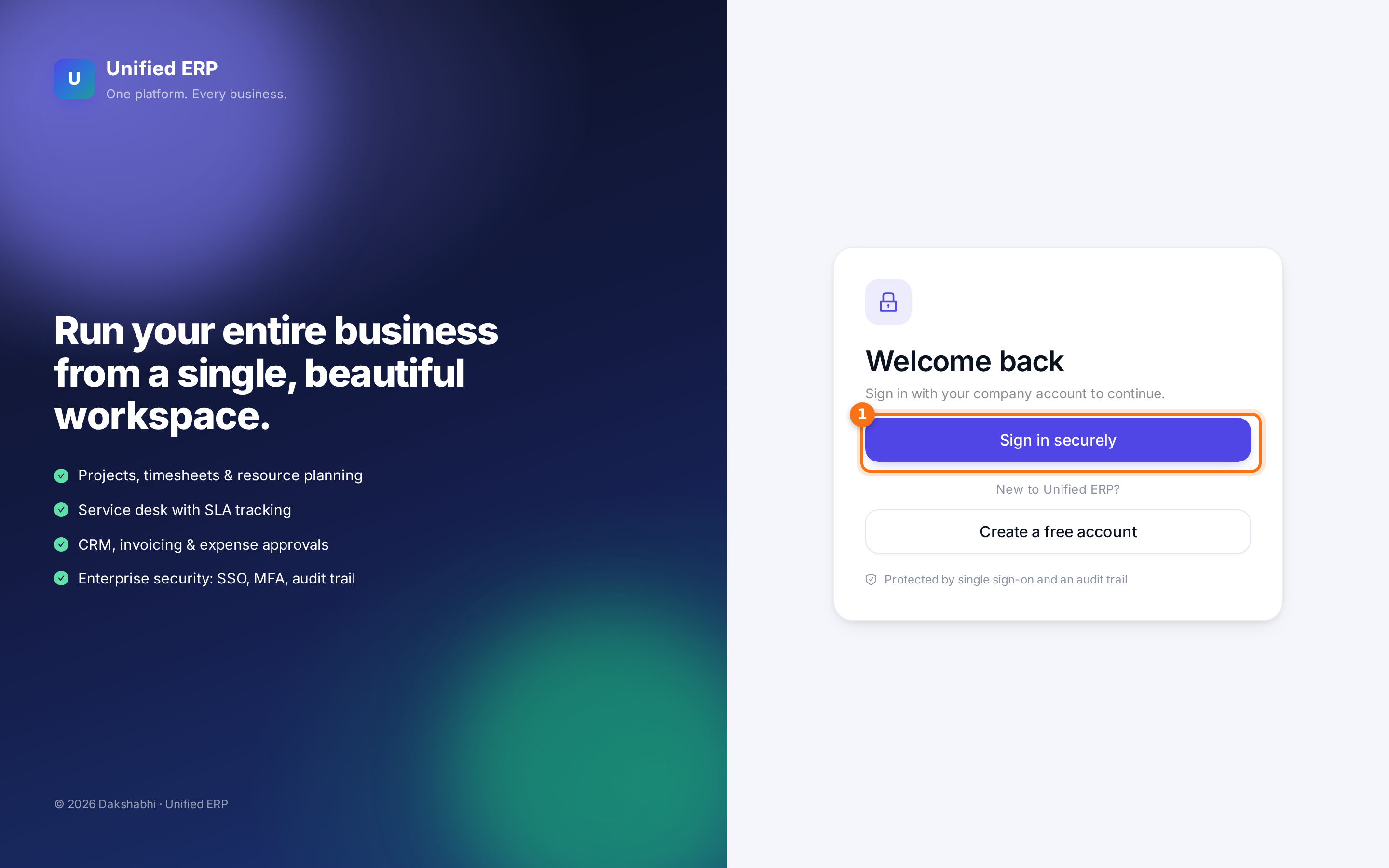
The welcome page. Click 1 Sign in securely. -
Click “Sign in securely”. You are taken to the secure sign-in page. This page is the same for every company that uses BizzWeave ERP; after signing in, you see only your own organisation.
-
Enter your e-mail and password, then click “Sign In”.
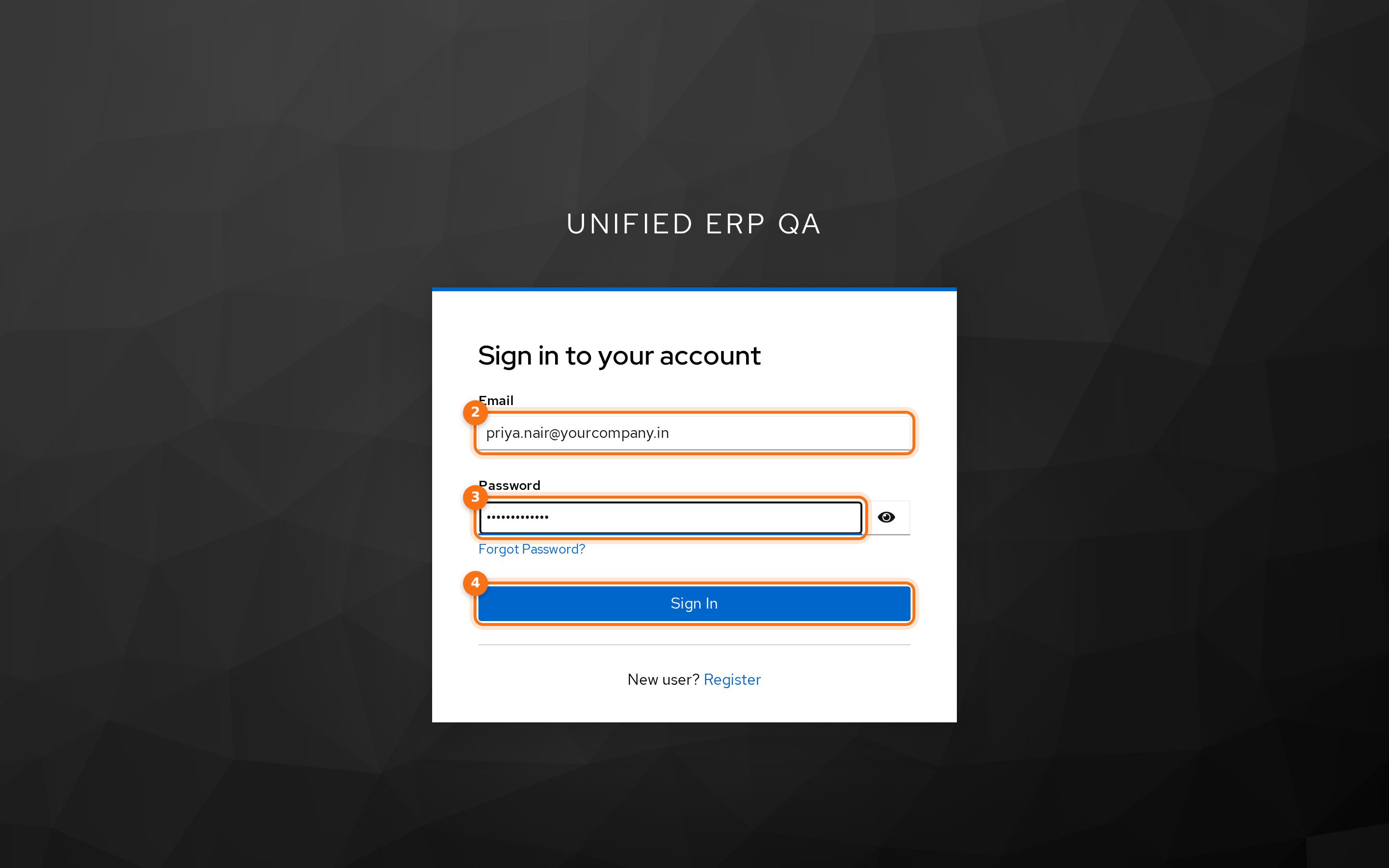
Type your e-mail in 2, your password in 3, then click 4 Sign In. Click the eye icon to see the password you typed. -
Enter the 6-digit code (live system only). The first time, the page shows a QR code. Open your authenticator app, tap +, scan the QR code and type the 6-digit code it shows. After that, type the current code from the app each time you sign in.
-
You're in. Your organisation's Dashboard opens. Continue with Find your way around.
Forgot your password?
- On the sign-in page, click Forgot Password? below the password box.
- Enter your e-mail address and click Submit.
- Open the e-mail from BizzWeave ERP and click the link in it. The link works only for a short time.
- Choose a new password, type it twice and click Submit. You are signed in.
New to BizzWeave ERP? Create an account
If your company doesn't use BizzWeave ERP yet, click Create a free account on the welcome page (or Register on the sign-in page). Enter your name, e-mail and a password; after signing in you are asked to create your organisation. If your company already uses BizzWeave ERP, don't register; ask your administrator to invite you instead, so that you join the right organisation.
Signing out
Click your initials in the top-right corner of any page and choose Sign out. Always sign out on a shared or public computer.
Problems signing in
“Invalid username or password.” Check for typing mistakes and that Caps Lock is off. Use Forgot Password? if you're not sure.
The 6-digit code is rejected. The code changes every 30 seconds; type the current one. If it's still rejected, check that the clock on your phone is set automatically.
“Your session has expired.” You were away for a long time. Click Sign in securely again; nothing you saved is lost.
I lost my phone. Ask your administrator to reset your two-step sign-in.